# Plan2Code: AI-Assisted Software Development Workflow
A structured 4-step workflow for developing features and projects with AI assistance. This methodology emphasizes thorough planning before implementation, ensuring well-documented, maintainable code.
 ## Overview
```
🤔 📝 ⚡ 🧹
┌─────────────────┐ ┌─────────────────┐ ┌─────────────────┐ ┌─────────────────┐
│ Step 1 │ │ Step 2 │ │ Step 3 │ │ Step 4 │
│ PLAN │ --> │ DOCUMENT │ --> │ IMPLEMENT │ --> │ FINALIZE │
└─────────────────┘ └─────────────────┘ └─────────────────┘ └─────────────────┘
New Chat New Chat New Chat (per phase) New Chat
```
| Step | File | Purpose |
| ------ | -------------------------------------- | ---------------------------------------------- |
| Init | `src/plan2code---init.md` | Generate AGENTS.md file for project guidance |
| Update | `src/plan2code---init-update.md` | Update existing AGENTS.md with new learnings |
| 0 | `src/plan2code---quick-task.md` | Lightweight planning for small tasks |
| 1 | `src/plan2code-1--plan.md` | Requirements analysis and architecture design |
| 1b | `src/plan2code-1b--revise-plan.md` | Modify specs mid-implementation |
| 2 | `src/plan2code-2--document.md` | Create structured implementation documentation |
| 3 | `src/plan2code-3--implement.md` | Execute the implementation phase by phase |
| 4 | `src/plan2code-4--finalize.md` | Validate, summarize, and archive |
---
## Quick Reference
| Command | Use When |
|---------|----------|
| `/plan2code---init` | Generate AGENTS.md file for new/existing projects |
| `/plan2code---init-update` | Update AGENTS.md with new learnings from coding sessions |
| `/plan2code---quick-task` | Small, quick tasks that don't need full workflow |
| `/plan2code-1--plan` | Starting a new feature (full planning) |
| `/plan2code-1b--revise-plan` | Requirements change mid-implementation |
| `/plan2code-2--document` | After planning, create implementation specs |
| `/plan2code-3--implement` | Execute implementation (one phase per conversation) |
| `/plan2code-4--finalize` | All phases complete, ready to archive |
**Key Rules:**
- Start NEW conversation for each step (and each implementation phase)
- ONE phase per conversation
- Reply "approved" to complete phases
- 90% confidence required before planning completes
See [QUICK-REFERENCE.md](QUICK-REFERENCE.md) for full reference card.
---
## Installation
This repository includes pre-configured workflow files for all major AI coding assistants. Choose your platform and follow the setup instructions below.
### Supported Platforms
| Platform | Directory | Invocation | Status |
| ------------------------------------------ | ---------------------- | ----------------------------------------------------------------------------------------------------------- | ------ |
| [Claude Code CLI](#claude-code-cli) | `.claude/commands/` | `/plan2code-1--plan`, `/plan2code-2--document`, `/plan2code-3--implement`, `/plan2code-4--finalize` | Ready |
| [GitHub Copilot CLI](#github-copilot-cli) | `.github/agents/` | `--agent=plan2code-1--plan` or `/agent plan2code-1--plan` | Ready |
| [VS Code Copilot](#vs-code-github-copilot) | `.github/prompts/` | Slash commands in chat | Ready |
| [Windsurf IDE](#windsurf-ide) | `.windsurf/workflows/` | `/plan2code-1--plan`, `/plan2code-2--document`, `/plan2code-3--implement`, `/plan2code-4--finalize` | Ready |
| [Cursor AI](#cursor-ai) | `.cursor/commands/` | `/plan2code-1--plan`, `/plan2code-2--document`, `/plan2code-3--implement`, `/plan2code-4--finalize` | Ready |
| [Google Antigravity](#google-antigravity) | `.agent/workflows/` | `/plan2code-1--plan`, `/plan2code-2--document`, `/plan2code-3--implement`, `/plan2code-4--finalize` | Ready |
| [Continue](#continue-vs-codejetbrains) | `.continue/prompts/` | `/plan2code-1--plan`, `/plan2code-2--document`, `/plan2code-3--implement`, `/plan2code-4--finalize` | Ready |
### Prerequisites
The install script requires **Node.js** (v14 or later). If you don't have Node.js installed:
1. Download from [nodejs.org](https://nodejs.org/)
2. Or use a package manager:
- **macOS:** `brew install node`
- **Windows:** `winget install OpenJS.NodeJS` or `choco install nodejs`
- **Linux:** `sudo apt install nodejs` (Debian/Ubuntu) or `sudo dnf install nodejs` (Fedora)
> **Note:** If you prefer not to install Node.js, you can use **Method 2: Manual copy** below instead.
### Quick Start
**Option A: Global Installation (Recommended for supported tools)**
Some tools support global installation to your home directory. Use files from the `dist/global-commands/` directory:
| Tool | Home Directory Location |
|------|------------------------|
| Claude Code | `~/.claude/commands/` |
| Copilot CLI | `~/.copilot/agents/` |
| Cursor | `~/.cursor/commands/` |
| Continue | `~/.continue/prompts/` |
| Windsurf | `~/.codeium/windsurf/global_workflows/` |
| VS Code Copilot | Windows: `%APPDATA%\Code\User\prompts\`
## Overview
```
🤔 📝 ⚡ 🧹
┌─────────────────┐ ┌─────────────────┐ ┌─────────────────┐ ┌─────────────────┐
│ Step 1 │ │ Step 2 │ │ Step 3 │ │ Step 4 │
│ PLAN │ --> │ DOCUMENT │ --> │ IMPLEMENT │ --> │ FINALIZE │
└─────────────────┘ └─────────────────┘ └─────────────────┘ └─────────────────┘
New Chat New Chat New Chat (per phase) New Chat
```
| Step | File | Purpose |
| ------ | -------------------------------------- | ---------------------------------------------- |
| Init | `src/plan2code---init.md` | Generate AGENTS.md file for project guidance |
| Update | `src/plan2code---init-update.md` | Update existing AGENTS.md with new learnings |
| 0 | `src/plan2code---quick-task.md` | Lightweight planning for small tasks |
| 1 | `src/plan2code-1--plan.md` | Requirements analysis and architecture design |
| 1b | `src/plan2code-1b--revise-plan.md` | Modify specs mid-implementation |
| 2 | `src/plan2code-2--document.md` | Create structured implementation documentation |
| 3 | `src/plan2code-3--implement.md` | Execute the implementation phase by phase |
| 4 | `src/plan2code-4--finalize.md` | Validate, summarize, and archive |
---
## Quick Reference
| Command | Use When |
|---------|----------|
| `/plan2code---init` | Generate AGENTS.md file for new/existing projects |
| `/plan2code---init-update` | Update AGENTS.md with new learnings from coding sessions |
| `/plan2code---quick-task` | Small, quick tasks that don't need full workflow |
| `/plan2code-1--plan` | Starting a new feature (full planning) |
| `/plan2code-1b--revise-plan` | Requirements change mid-implementation |
| `/plan2code-2--document` | After planning, create implementation specs |
| `/plan2code-3--implement` | Execute implementation (one phase per conversation) |
| `/plan2code-4--finalize` | All phases complete, ready to archive |
**Key Rules:**
- Start NEW conversation for each step (and each implementation phase)
- ONE phase per conversation
- Reply "approved" to complete phases
- 90% confidence required before planning completes
See [QUICK-REFERENCE.md](QUICK-REFERENCE.md) for full reference card.
---
## Installation
This repository includes pre-configured workflow files for all major AI coding assistants. Choose your platform and follow the setup instructions below.
### Supported Platforms
| Platform | Directory | Invocation | Status |
| ------------------------------------------ | ---------------------- | ----------------------------------------------------------------------------------------------------------- | ------ |
| [Claude Code CLI](#claude-code-cli) | `.claude/commands/` | `/plan2code-1--plan`, `/plan2code-2--document`, `/plan2code-3--implement`, `/plan2code-4--finalize` | Ready |
| [GitHub Copilot CLI](#github-copilot-cli) | `.github/agents/` | `--agent=plan2code-1--plan` or `/agent plan2code-1--plan` | Ready |
| [VS Code Copilot](#vs-code-github-copilot) | `.github/prompts/` | Slash commands in chat | Ready |
| [Windsurf IDE](#windsurf-ide) | `.windsurf/workflows/` | `/plan2code-1--plan`, `/plan2code-2--document`, `/plan2code-3--implement`, `/plan2code-4--finalize` | Ready |
| [Cursor AI](#cursor-ai) | `.cursor/commands/` | `/plan2code-1--plan`, `/plan2code-2--document`, `/plan2code-3--implement`, `/plan2code-4--finalize` | Ready |
| [Google Antigravity](#google-antigravity) | `.agent/workflows/` | `/plan2code-1--plan`, `/plan2code-2--document`, `/plan2code-3--implement`, `/plan2code-4--finalize` | Ready |
| [Continue](#continue-vs-codejetbrains) | `.continue/prompts/` | `/plan2code-1--plan`, `/plan2code-2--document`, `/plan2code-3--implement`, `/plan2code-4--finalize` | Ready |
### Prerequisites
The install script requires **Node.js** (v14 or later). If you don't have Node.js installed:
1. Download from [nodejs.org](https://nodejs.org/)
2. Or use a package manager:
- **macOS:** `brew install node`
- **Windows:** `winget install OpenJS.NodeJS` or `choco install nodejs`
- **Linux:** `sudo apt install nodejs` (Debian/Ubuntu) or `sudo dnf install nodejs` (Fedora)
> **Note:** If you prefer not to install Node.js, you can use **Method 2: Manual copy** below instead.
### Quick Start
**Option A: Global Installation (Recommended for supported tools)**
Some tools support global installation to your home directory. Use files from the `dist/global-commands/` directory:
| Tool | Home Directory Location |
|------|------------------------|
| Claude Code | `~/.claude/commands/` |
| Copilot CLI | `~/.copilot/agents/` |
| Cursor | `~/.cursor/commands/` |
| Continue | `~/.continue/prompts/` |
| Windsurf | `~/.codeium/windsurf/global_workflows/` |
| VS Code Copilot | Windows: `%APPDATA%\Code\User\prompts\`
macOS: `~/Library/Application Support/Code/User/prompts/`
Linux: `~/.config/Code/User/prompts/` |
Other tools (GitHub Copilot in `.github/`, Antigravity) require per-project installation.
> **Home Directory Locations:**
>
> - **macOS/Linux:** `~/` (e.g., `/Users/yourname/` or `/home/yourname/`)
> - **Windows:** `%USERPROFILE%` (e.g., `C:\Users\yourname\`)
**Method 1: Use the install script (easiest)**
```bash
# Clone the repository
git clone https://github.com/your-username/plan2code.git
cd plan2code
# Interactive mode - choose platforms from menu
node install.js
```
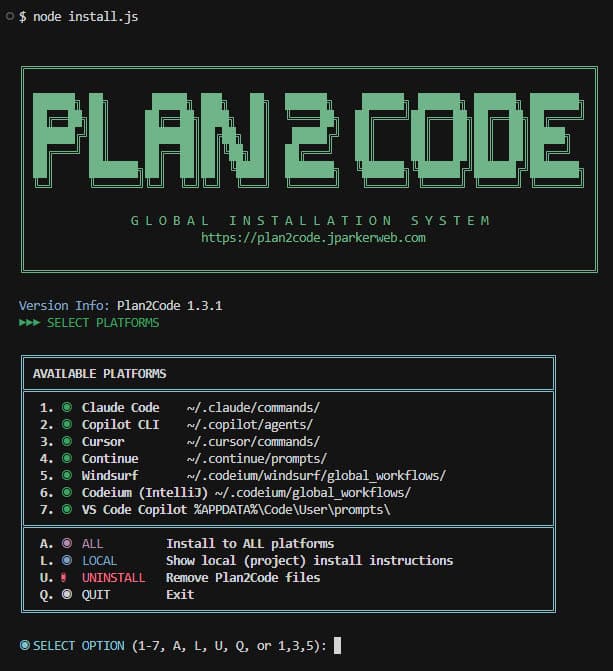
The interactive menu displays:
```
Available platforms:
1. Claude Code (~/.claude/commands/)
2. Copilot CLI (~/.copilot/agents/)
3. Cursor (~/.cursor/commands/)
4. Continue (~/.continue/prompts/)
5. Windsurf (~/.codeium/windsurf/global_workflows/)
6. VS Code Copilot (%APPDATA%\Code\User\prompts\)
A. Install ALL platforms
U. Uninstall Plan2Code files
Q. Quit
Enter choice (1-6, A, U, Q, or comma-separated like 1,3,5):
```
 **Non-interactive options:**
```bash
node install.js --dry-run # Preview installation (all platforms)
node install.js --platform claude # Install specific platform only
node install.js --uninstall # Remove all installed files
```
**Method 2: Manual copy from `dist/global-commands/`**
```bash
# Clone the repository
git clone https://github.com/your-username/plan2code.git
# macOS/Linux - copy desired platform directories:
cp -r plan2code/dist/global-commands/.claude ~/ # Claude Code
cp -r plan2code/dist/global-commands/.copilot ~/ # Copilot CLI
cp -r plan2code/dist/global-commands/.cursor ~/ # Cursor
cp -r plan2code/dist/global-commands/.continue ~/ # Continue
mkdir -p ~/.codeium/windsurf && cp -r plan2code/dist/global-commands/.codeium/windsurf/global_workflows ~/.codeium/windsurf/ # Windsurf
# VS Code Copilot (macOS):
cp plan2code/dist/global-commands/vscode-copilot-prompts/*.prompt.md ~/Library/Application\ Support/Code/User/prompts/
# VS Code Copilot (Linux):
mkdir -p ~/.config/Code/User/prompts && cp plan2code/dist/global-commands/vscode-copilot-prompts/*.prompt.md ~/.config/Code/User/prompts/
# Windows (PowerShell):
Copy-Item -Recurse plan2code\dist\global-commands\.claude $env:USERPROFILE\
Copy-Item -Recurse plan2code\dist\global-commands\.copilot $env:USERPROFILE\
Copy-Item -Recurse plan2code\dist\global-commands\.cursor $env:USERPROFILE\
Copy-Item -Recurse plan2code\dist\global-commands\.continue $env:USERPROFILE\
New-Item -ItemType Directory -Force -Path "$env:USERPROFILE\.codeium\windsurf"
Copy-Item -Recurse plan2code\dist\global-commands\.codeium\windsurf\global_workflows $env:USERPROFILE\.codeium\windsurf\
# VS Code Copilot (Windows):
New-Item -ItemType Directory -Force -Path "$env:APPDATA\Code\User\prompts"
Copy-Item plan2code\dist\global-commands\vscode-copilot-prompts\*.prompt.md $env:APPDATA\Code\User\prompts\
```
**Option B: Per-Project Installation**
If you prefer project-specific configuration, use files from the `dist/local-commands/` directory:
```bash
# Clone the repository
git clone https://github.com/your-username/plan2code.git
# Copy the platform-specific directory to your project
# Example for Claude Code:
cp -r plan2code/dist/local-commands/.claude your-project/
# Example for GitHub Copilot (VS Code):
cp -r plan2code/dist/local-commands/.github your-project/
# Example for Windsurf:
cp -r plan2code/dist/local-commands/.windsurf your-project/
```
> **Warning:** If your project's `.gitignore` includes patterns like `.windsurf/`, `.cursor/`, or similar, the AI tool may not recognize the workflows/commands. Use global installation instead.
**Option C: Download individual platform directories**
Download only the directories you need from `dist/local-commands/` (for projects) or `dist/global-commands/` (for home directory).
---
**Non-interactive options:**
```bash
node install.js --dry-run # Preview installation (all platforms)
node install.js --platform claude # Install specific platform only
node install.js --uninstall # Remove all installed files
```
**Method 2: Manual copy from `dist/global-commands/`**
```bash
# Clone the repository
git clone https://github.com/your-username/plan2code.git
# macOS/Linux - copy desired platform directories:
cp -r plan2code/dist/global-commands/.claude ~/ # Claude Code
cp -r plan2code/dist/global-commands/.copilot ~/ # Copilot CLI
cp -r plan2code/dist/global-commands/.cursor ~/ # Cursor
cp -r plan2code/dist/global-commands/.continue ~/ # Continue
mkdir -p ~/.codeium/windsurf && cp -r plan2code/dist/global-commands/.codeium/windsurf/global_workflows ~/.codeium/windsurf/ # Windsurf
# VS Code Copilot (macOS):
cp plan2code/dist/global-commands/vscode-copilot-prompts/*.prompt.md ~/Library/Application\ Support/Code/User/prompts/
# VS Code Copilot (Linux):
mkdir -p ~/.config/Code/User/prompts && cp plan2code/dist/global-commands/vscode-copilot-prompts/*.prompt.md ~/.config/Code/User/prompts/
# Windows (PowerShell):
Copy-Item -Recurse plan2code\dist\global-commands\.claude $env:USERPROFILE\
Copy-Item -Recurse plan2code\dist\global-commands\.copilot $env:USERPROFILE\
Copy-Item -Recurse plan2code\dist\global-commands\.cursor $env:USERPROFILE\
Copy-Item -Recurse plan2code\dist\global-commands\.continue $env:USERPROFILE\
New-Item -ItemType Directory -Force -Path "$env:USERPROFILE\.codeium\windsurf"
Copy-Item -Recurse plan2code\dist\global-commands\.codeium\windsurf\global_workflows $env:USERPROFILE\.codeium\windsurf\
# VS Code Copilot (Windows):
New-Item -ItemType Directory -Force -Path "$env:APPDATA\Code\User\prompts"
Copy-Item plan2code\dist\global-commands\vscode-copilot-prompts\*.prompt.md $env:APPDATA\Code\User\prompts\
```
**Option B: Per-Project Installation**
If you prefer project-specific configuration, use files from the `dist/local-commands/` directory:
```bash
# Clone the repository
git clone https://github.com/your-username/plan2code.git
# Copy the platform-specific directory to your project
# Example for Claude Code:
cp -r plan2code/dist/local-commands/.claude your-project/
# Example for GitHub Copilot (VS Code):
cp -r plan2code/dist/local-commands/.github your-project/
# Example for Windsurf:
cp -r plan2code/dist/local-commands/.windsurf your-project/
```
> **Warning:** If your project's `.gitignore` includes patterns like `.windsurf/`, `.cursor/`, or similar, the AI tool may not recognize the workflows/commands. Use global installation instead.
**Option C: Download individual platform directories**
Download only the directories you need from `dist/local-commands/` (for projects) or `dist/global-commands/` (for home directory).
---
Claude Code CLI
**Location:** `.claude/commands/` (project) or `~/.claude/commands/` (global)
**Setup:**
```bash
# Global installation (recommended) - interactive
node install.js # Select option 1 or A
# Or non-interactive
node install.js --platform claude
# Or manual copy
cp -r plan2code/dist/global-commands/.claude ~/
# Or per-project
cp -r plan2code/dist/local-commands/.claude your-project/
```
Restart Claude Code or start a new session after installation.
**Files:**
```
.claude/commands/
├── plan2code-1--plan.md # Step 1: Planning
├── plan2code-2--document.md # Step 2: Documentation
├── plan2code-3--implement.md # Step 3: Implementation
└── plan2code-4--finalize.md # Step 4: Finalization
```
**Usage:**
```bash
/plan2code-1--plan # Start planning a new feature
/plan2code-2--document # Create implementation docs from plan
/plan2code-3--implement # Begin/continue implementation
/plan2code-4--finalize # Wrap up after all phases complete
```
**Documentation:** [Claude Code Slash Commands](https://code.claude.com/docs/en/slash-commands)
---
GitHub Copilot CLI
**Location:** `.github/agents/` (project) or `~/.copilot/agents/` (global)
**Setup:**
```bash
# Global installation (recommended) - interactive
node install.js # Select option 2 or A
# Or non-interactive
node install.js --platform copilot
# Or manual copy
cp -r plan2code/dist/global-commands/.copilot ~/
# Or per-project
cp -r plan2code/dist/local-commands/.github your-project/
```
Ensure GitHub Copilot CLI is installed: `npm install -g @github/copilot@latest`
**Files:**
```
.github/agents/
├── plan2code-1--plan.agent.md # Step 1: Planning
├── plan2code-2--document.agent.md # Step 2: Documentation
├── plan2code-3--implement.agent.md # Step 3: Implementation
└── plan2code-4--finalize.agent.md # Step 4: Finalization
```
**Usage:**
```bash
# Using --agent flag
copilot --agent=plan2code-1--plan --prompt "I want to build a REST API"
# Using slash commands in interactive mode
copilot
> /agent plan2code-1--plan
```
**Documentation:** [GitHub Copilot CLI Custom Agents](https://docs.github.com/en/copilot/concepts/agents/about-copilot-cli)
---
VS Code GitHub Copilot
**Location:** `.github/prompts/` (project only - no global support)
**Setup:**
```bash
# Per-project installation only
cp -r plan2code/dist/local-commands/.github your-project/
```
Open VS Code and ensure GitHub Copilot extension is installed. Prompts are automatically recognized.
> **Note:** GitHub prompts must be installed per-project (no global support).
**Files:**
```
.github/prompts/
├── plan2code-1--plan.prompt.md # Step 1: Planning
├── plan2code-2--document.prompt.md # Step 2: Documentation
├── plan2code-3--implement.prompt.md # Step 3: Implementation
└── plan2code-4--finalize.prompt.md # Step 4: Finalization
```
**File Format:**
```yaml
---
mode: agent
description: "Plan2Code Step 1: Planning Mode"
---
[prompt content]
```
**Usage:**
- Open Copilot Chat (Ctrl+Shift+I or Cmd+Shift+I)
- Type `/` to see available prompts
- Select the desired workflow step
**Documentation:** [VS Code Copilot Prompt Files](https://code.visualstudio.com/docs/copilot/customization/prompt-files)
---
Windsurf IDE
**Location:** `.windsurf/workflows/` (project) or `~/.codeium/windsurf/global_workflows/` (global)
**Setup:**
```bash
# Global installation (recommended) - interactive
node install.js # Select option 5 or A
# Or non-interactive
node install.js --platform windsurf
# Or manual copy (macOS/Linux)
mkdir -p ~/.codeium/windsurf
cp -r plan2code/dist/global-commands/.codeium/windsurf/global_workflows ~/.codeium/windsurf/
# Or per-project
cp -r plan2code/dist/local-commands/.windsurf your-project/
```
> **Note:** Windsurf also searches parent directories up to git root for `.windsurf/workflows/`.
> **Warning:** If `.windsurf/` is in your project's `.gitignore`, workflows may not be recognized. Use global installation instead.
**Files:**
```
.windsurf/workflows/
├── plan2code-1--plan.md # Step 1: Planning
├── plan2code-2--document.md # Step 2: Documentation
├── plan2code-3--implement.md # Step 3: Implementation
└── plan2code-4--finalize.md # Step 4: Finalization
```
**Note:** Windsurf has a 12,000 character limit per workflow file.
**Usage:**
- In Cascade, type `/plan2code-1--plan` to invoke the planning workflow
**Documentation:** [Windsurf Workflows](https://docs.windsurf.com/windsurf/cascade/workflows)
---
Cursor AI
**Location:** `.cursor/commands/` (project) or `~/.cursor/commands/` (global)
**Setup:**
```bash
# Global installation (recommended) - interactive
node install.js # Select option 3 or A
# Or non-interactive
node install.js --platform cursor
# Or manual copy
cp -r plan2code/dist/global-commands/.cursor ~/
# Or per-project
cp -r plan2code/dist/local-commands/.cursor your-project/
```
**Files:**
```
.cursor/commands/
├── plan2code-1--plan.md # Step 1: Planning
├── plan2code-2--document.md # Step 2: Documentation
├── plan2code-3--implement.md # Step 3: Implementation
└── plan2code-4--finalize.md # Step 4: Finalization
```
**Usage:**
- Type `/` in Cursor chat to see available commands
- Select `plan2code-1--plan` from the dropdown
- Commands from both project and global directories appear automatically
**Documentation:** [Cursor Commands](https://docs.cursor.com/agent/chat/commands)
---
Google Antigravity
**Location:** `.agent/workflows/` (project only)
> **Note:** Antigravity supports global workflows through the UI, but the exact filesystem path is not well documented. Project-level workflows in `.agent/workflows/` are the recommended approach.
**Setup:**
```bash
# Per-project installation only
cp -r plan2code/dist/local-commands/.agent your-project/
```
Workflows appear automatically in Antigravity.
> **Warning:** If `.agent/` is in your project's `.gitignore`, workflows may not be recognized.
**Files:**
```
.agent/workflows/
├── plan2code-1--plan.md # Step 1: Planning
├── plan2code-2--document.md # Step 2: Documentation
├── plan2code-3--implement.md # Step 3: Implementation
└── plan2code-4--finalize.md # Step 4: Finalization
```
**File Format:**
```yaml
---
description: "Plan2Code Step 1: Planning Mode"
---
[prompt content]
```
**Usage:**
- Type `/plan2code-1--plan` in the agent chat to invoke the planning workflow
**Documentation:** [Customize Antigravity](https://atamel.dev/posts/2025/11-25_customize_antigravity_rules_workflows/)
---
Continue (VS Code/JetBrains)
**Location:** `.continue/prompts/` (project) or `~/.continue/prompts/` (global)
**Setup:**
```bash
# Global installation (recommended) - interactive
node install.js # Select option 4 or A
# Or non-interactive
node install.js --platform continue
# Or manual copy
cp -r plan2code/dist/global-commands/.continue ~/
# Or per-project
cp -r plan2code/dist/local-commands/.continue your-project/
```
Install the Continue extension for VS Code or JetBrains. Prompts are automatically recognized.
> **Warning:** If `.continue/` is in your project's `.gitignore`, prompts may not be recognized. Use global installation instead.
**Files:**
```
.continue/prompts/
├── plan2code-1--plan.prompt.md # Step 1: Planning
├── plan2code-2--document.prompt.md # Step 2: Documentation
├── plan2code-3--implement.prompt.md # Step 3: Implementation
└── plan2code-4--finalize.prompt.md # Step 4: Finalization
```
**File Format:**
```yaml
---
name: plan2code-1--plan
description: "Plan2Code Step 1: Planning Mode"
---
[prompt content]
```
**Usage:**
- In Continue chat, type `/plan2code-1--plan` to invoke the planning workflow
- Use `{{{ input }}}` template variable for user input
- Use `{{{ currentFile }}}` to reference the current file
**Documentation:** [Continue Prompts](https://docs.continue.dev/customize/deep-dives/prompts)
---
### Manual Installation (Any Platform)
If your AI tool isn't listed above, you can still use Plan2Code:
1. **Copy/Paste Method:** Copy the contents of the appropriate `src/plan2code-*.md` file and paste it at the start of your conversation.
2. **File Reference Method:** Reference the file directly in your prompt:
```
Please follow the instructions in src/plan2code-1--plan.md
I want to build a user authentication system.
```
3. **Custom Integration:** Use files from `dist/local-commands/` or `dist/global-commands/` as templates, then adapt to your tool's custom instruction format.
---
## Important: Start Fresh Conversations
**Start a new conversation/chat session before each step.** This includes:
- Step 1: New conversation
- Step 2: New conversation
- Step 3: New conversation **for each phase** (Phase 1, Phase 2, etc.)
- Step 4: New conversation
Fresh conversations prevent context pollution and ensure the AI focuses on the current task with the relevant specifications.
---
## The Workflow Steps
### Step 1: Planning Mode 🤔
**Purpose:** Thoroughly analyze requirements and design the solution architecture before writing any code.
**AI Role:** Senior software architect and technical product manager
**Phases (completed one at a time):**
1. **Requirements Analysis** - Extract functional/non-functional requirements, identify ambiguities
2. **System Context Examination** - Review existing codebase, identify integration points
3. **Tech Stack** - Recommend and confirm all technologies (requires user sign-off)
4. **Architecture Design** - Propose patterns, define components, design interfaces/schemas
5. **Technical Specification** - Break down implementation phases, identify risks
6. **Transition Decision** - Finalize plan when confidence reaches 90%+
**Output:** `specs/PLAN-DRAFT-.md` containing the complete implementation plan
**Key Behaviors:**
- AI stops after each phase for clarification
- Must reach 90% confidence before finalizing
- All assumptions are documented
- User must approve tech stack decisions
---
### Step 2: Documentation Mode 📝
**Purpose:** Transform the planning output into structured, actionable implementation documents.
**Required Context:** Attach or reference the `specs/PLAN-DRAFT-.md` from Step 1 (or provide the planning conversation).
**Output Structure:**
```
specs/
└── /
├── overview.md # High-level overview with phase checkboxes
├── Phase 1.md # Detailed tasks for Phase 1
├── Phase 2.md # Detailed tasks for Phase 2
└── Phase N.md # ...additional phases
```
**Document Format:**
- Each phase file contains detailed one-story-point tasks
- All tasks have checkboxes `[ ]` for progress tracking
- Each phase is self-contained (developer needs no prior context)
- Unit/E2E testing excluded unless explicitly requested
---
### Step 3: Implementation Mode ⚡
**Purpose:** Execute the implementation following the documented specifications.
**AI Role:** Senior software engineer
**Required Context:** Provide the path to `specs//overview.md`. The command will auto-detect the next uncompleted phase and read the corresponding `Phase X.md` file automatically.
**Workflow:**
1. Identify the next uncompleted phase (unchecked in `overview.md`)
2. Implement ALL tasks in that phase exactly as specified
3. Update `Phase X.md` checkboxes as tasks complete `[x]`
4. Update `overview.md` phase checkbox when phase completes
5. Perform code review to ensure nothing was missed
6. Add completion summary to the phase document
**Key Rules:**
- **Start a new conversation for EACH phase**
- Work on ONE phase per conversation (unless told otherwise)
- Follow specifications EXACTLY as documented
- Keep checkboxes updated (enables progress tracking across sessions)
- Do NOT run tests unless specified in phase tasks
---
### Step 4: Finalization Mode 🧹
**Purpose:** Validate implementation, create summaries, and archive documentation.
**Required Context:** Attach or reference the `specs//` directory contents.
**Steps:**
1. **Validation** - Verify all tasks implemented correctly, check for issues
2. **Summary** - Document what was built and list all modified/created files
3. **Documentation Review** - Identify any needed README/CHANGELOG updates
4. **Spec Cleanup** - Move completed specs to `specs--completed//`
5. **Final Confirmation** - Confirm completion
---
## How to Use These Prompts
### Option 1: Platform-Specific Slash Commands (Recommended)
This repository includes pre-configured workflow files for all major AI coding assistants. See the [Installation](#installation) section above for platform-specific setup instructions.
**Quick commands after setup:**
```
/plan # Start planning a new feature
/document # Create implementation docs from plan
/implement # Begin/continue implementation
/finalize # Wrap up after all phases complete
```
### Option 2: Direct File Reference
Reference the prompt files directly in your conversation:
```
Please follow the instructions in src/plan2code-1--plan.md
I want to build a user authentication system with OAuth support.
```
### Option 3: Copy/Paste
Copy the contents of each prompt file and paste at the beginning of your conversation when starting that step.
---
## Complete Workflow Example
### Starting a New Project
**Session 1 - Planning (New Chat):**
```
User: [Paste or invoke Step 1 prompt]
I want to build a REST API for a task management application.
AI: 🤔 [REQUIREMENTS ANALYSIS]
... asks clarifying questions, works through phases ...
AI: 🤔 [TRANSITION DECISION]
Confidence: 92%. Creating specs/PLAN DRAFT.md...
```
**Session 2 - Documentation (New Chat):**
```
User: [Paste or invoke Step 2 prompt]
[Attach: specs/PLAN DRAFT.md]
AI: 📝 [DOCUMENTATION]
Creating specs/task-api/overview.md...
Creating specs/task-api/Phase 1.md...
Creating specs/task-api/Phase 2.md...
...
```
**Session 3 - Implementation Phase 1 (New Chat):**
```
User: [Paste or invoke Step 3 prompt]
[Provide: specs/task-api/overview.md]
AI: ⚡ [PHASE 1: Project Setup]
(Auto-detected Phase 1 as next uncompleted phase)
Implementing tasks...
✓ Phase 1 complete. Updated checkboxes in Phase 1.md and overview.md.
```
**Session 4 - Implementation Phase 2 (New Chat):**
```
User: [Paste or invoke Step 3 prompt]
[Provide: specs/task-api/overview.md]
AI: ⚡ [PHASE 2: Database Models]
(Auto-detected Phase 2 as next uncompleted phase)
Implementing tasks...
✓ Phase 2 complete. Updated checkboxes in Phase 2.md and overview.md.
```
**Sessions 5-N - Continue Implementation (New Chat for each phase):**
```
... repeat for each remaining phase ...
```
**Final Session - Finalization (New Chat):**
```
User: [Paste or invoke Step 4 prompt]
[Provide: specs/task-api/overview.md]
AI: 🧹 [VALIDATION]
Verifying implementation...
AI: 🧹 [SPEC CLEANUP]
Moving to specs--completed/task-api/
Implementation complete!
```
---
## Progress Tracking
The checkbox system enables seamless progress tracking across multiple sessions:
**overview.md:**
```markdown
## Phases
- [x] Phase 1: Project Setup
- [x] Phase 2: Database Models
- [ ] Phase 3: API Endpoints <- Next phase to implement
- [ ] Phase 4: Authentication
```
**Phase 3.md:**
```markdown
## Tasks
- [x] Create routes file
- [x] Implement GET /tasks
- [ ] Implement POST /tasks <- Current task
- [ ] Implement PUT /tasks/:id
- [ ] Implement DELETE /tasks/:id
```
---
## Best Practices
1. **Start fresh conversations** - New chat for each step and each implementation phase
2. **Always attach specs** - The AI needs the spec files to understand the current state
3. **Don't skip planning** - The upfront investment prevents costly rework later
4. **Confirm tech stack** - Ensure AI gets explicit approval before architecture design
5. **One phase at a time** - Keeps conversations focused and manageable
6. **Update checkboxes immediately** - Maintains accurate progress state
7. **Review phase output** - Verify each phase before moving to the next
8. **Keep spec files** - The completed folder serves as project documentation
---
## What to Attach at Each Step
| Step | Required Input |
| ------------------ | ---------------------------------------------------- |
| Step 1 (Plan) | None (describe your feature/project) |
| Step 2 (Document) | `specs/PLAN DRAFT.md` or planning conversation |
| Step 3 (Implement) | `specs//overview.md` (auto-detects phase) |
| Step 4 (Finalize) | `specs//overview.md` |
---
## File Structure After Complete Implementation
```
your-project/
├── specs/
│ └── another-feature/ # In-progress feature
│ ├── overview.md
│ └── Phase 1.md
├── specs--completed/
│ └── feature-name/
│ ├── overview.md # Archived with completion summary
│ ├── Phase 1.md # All checkboxes marked [x]
│ ├── Phase 2.md
│ └── ...
├── your project files...
└── README.md
```
---
## Customization
Feel free to modify these prompts to fit your workflow:
- **Add testing phases** - Uncomment/add testing requirements in Step 2
- **Adjust confidence threshold** - Change the 90% threshold in Step 1
- **Modify output structure** - Customize the specs folder organization
- **Add code review steps** - Enhance Step 3 with additional review gates
---
## Troubleshooting
**Slash commands/workflows not recognized:**
- Check if your project's `.gitignore` includes patterns like `.windsurf/`, `.cursor/`, `.continue/`, or `.agent/`
- Many AI tools don't recognize workflows in gitignored directories
- Solution: Use global installation by copying the directories to your home directory (e.g., `cp -r .windsurf ~/`)
**AI jumps ahead to implementation during planning:**
- The prompts explicitly forbid this, but if it happens, remind the AI: "Stay in planning mode. Do not write code yet."
**AI doesn't know what to implement:**
- Make sure you provided the path to `overview.md`
- The AI will auto-detect the next phase and read the corresponding `Phase X.md` file
**Lost progress between sessions:**
- Check `overview.md` for phase status
- Review individual phase files for task completion status
**AI not following spec exactly:**
- Reference the specific phase document and ask it to re-read the requirements
**Too many/few phases:**
- Adjust during Step 2 (Documentation) - phases should represent logical groupings of work